TrackDat User Manual
Motion tracking, camera-path design, effects, audio, and multitrack composition for dancers
Manual edition: September 20, 2026 Applies to: TrackDat and the current TrackDatTesting workspace
TrackDat is under active development. A control may move or gain options before this manual is updated, but the workflow and concepts below remain the intended model.
Contents
- What TrackDat is
- The five-minute workflow
- Core concepts
- Workspace tour
- Projects, clips, saves, and recovery
- Importing and reconnecting media
- Original Clip: trim, audio grid, seed, and framing
- Generating and reviewing a camera path
- Project Timeline and multitrack editing
- Automation and keyframes
- Audio analysis, BPM, replacement tracks, and music warping
- Motion rhythm, quantization, and timing accuracy
- Video processing
- Tracking controls
- Tracking overlays and visual effects
- Layer Manager
- Rendering and export
- Playback, live preview, pop-out, and keyboard controls
- Mobile workflow and performance
- Troubleshooting
- Recommended recipes
- Glossary
1. What TrackDat is
TrackDat is a browser-based video editor built around dancer motion. It can:
- follow a dancer with a generated camera path;
- reframe horizontal or loosely framed footage into a controlled output frame;
- analyze audio, tempo, beats, bars, and motion rhythm;
- apply replacement music and warp it to a target tempo;
- retime movement toward a beat grid without modifying the original source file;
- build motion-aware masks, rigs, boxes, floors, particles, lasers, glitter, and geometric effects;
- keyframe visual properties;
- combine clips, renders, and audio on a project timeline;
- render individual clips or a complete composition;
- save projects and presets locally in the browser or as portable files.
TrackDat is designed to do most work on your device. Imported media is not automatically turned into a server-backed project. This gives the user control over files and processing, but it also means that a browser reload can require permission to reconnect local media.
What TrackDat does not change
The source video is treated as read-only. Trimming, motion retiming, framing, effects, and audio replacement are stored as project instructions. They do not overwrite the original file.
TrackDat and TrackDatTesting
- TrackDat is the main route intended for normal use.
- TrackDatTesting is the staging route used to verify newer behavior.
The interfaces are kept closely aligned, but the testing route may contain work that has not yet been promoted.
2. The five-minute workflow
For a basic dancer-following render:
- Open TrackDat and sign in if prompted.
- In Project, choose Import Clip and select a local video.
- Wait for the original-audio analysis to finish. A silent video should be reported as having no audible audio.
- In Original, set the clip In and Out points if needed.
- Choose a useful seed frame where the dancer's face is visible.
- Use Manual Offset X, Manual Offset Y, and Base Frame Scale to establish the output framing.
- Place or confirm the face seed.
- Enable only the tracking and effects you need.
- Select Generate Path or Queue Path + Render.
- Review the Path preview. If the dancer drifts, adjust the relevant PATH settings and regenerate.
- Select Queue Render.
- Review the Processed result, then download or export it.
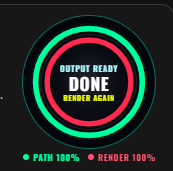
The circular workflow control reports the current phase and percentage:
A good first test
Use a 5–15 second clip, a moderate tracking frame rate, face tracking, and body framing. Leave expensive effects disabled until the camera path looks right. This separates tracking problems from render-effect problems and makes iteration much faster.
3. Core concepts
Understanding these terms prevents most workflow confusion.
Project
A project is the complete editing workspace: clip order, track layout, clip ranges, settings, paths, automation, audio routing, presentation clips, and references to renders.
Clip
A clip is one editable source item in the project. Each clip owns its own:
- source media reference;
- non-destructive In/Out range;
- seed and framing setup;
- path settings and generated camera path;
- render settings and processed result;
- audio analysis and replacement-audio choices;
- keyframes.
Changing the active clip changes which clip the sidebar edits.
Path
The path is the time-based camera/framing result generated from the source. It contains tracking and framing information but is not the final encoded video.
Processed render
The processed render is the derived video created from the path plus render effects, overlays, presentation elements, and audio choices.
Composition
The composition is the project-level arrangement of video and audio tracks. It can contain multiple source clips and completed renders. A completed render is not automatically inserted into the composition; use Add as Track or Add to End when you want it there.
Original, Path, and Processed
The three main preview stages are:
- Original — source video, trim range, seed, framing setup, and source audio.
- Path — generated camera movement, path filmstrip, clip automation, audio grids, and layers.
- Processed — final-frame generation, completed render playback, and export.
Switching stages preserves a shared source-relative playhead whenever possible.
PATH, RENDER, PREVIEW, and MIXED badges
Badges beside settings describe when they take effect:
- PATH — changes path generation. Regenerate the path.
- RENDER — uses the existing path but requires a new render.
- PREVIEW — changes an editing or preview aid and is not necessarily exported.
- MIXED — has separate preview and render behavior, or affects more than one stage.
When TrackDat says Path Stale, a path-affecting value no longer matches the saved path. Render-only changes should not require path regeneration.
Enable versus configure
An accordion can be open while its effect is disabled. Opening a panel only exposes controls. The checkbox in its header, or its Preview/Render checkboxes, determines whether it participates.
Local-first storage
Project state, analysis, paths, filmstrips, and recovery checkpoints can be kept in browser storage. The actual local video or music file may still require reconnection after a reload because browsers do not grant permanent unrestricted file access.
4. Workspace tour
Left sidebar
The sidebar is organized into top-level accordions:
- Project
- Preset Saves
- Audio
- Video Processing
- Tracking Controls
- Tracking Overlays
The sidebar can be collapsed with the edge control. Its state and accordion states are remembered locally.
Main workspace
The right side contains:
- the current stage header and workflow control;
- the Original / Path / Processed tabs;
- the video preview or player;
- contextual transport controls;
- the Project Timeline;
- the Layer Manager when working with Path;
- render and export tools when working with Processed.
Project Timeline tabs
- Composition shows the project-level video and audio tracks.
- Active Clip shows the selected clip's generated camera path, audio grids, automation, and confidence data.
Custom sliders
Many numeric settings use the TrackDat precision slider:
- drag the yellow grip for broad adjustment;
- click the number to type an exact value;
- use − and + for controlled steps;
- hold − or + to repeat, with acceleration;
- use the gear to adjust available precision behavior when present;
- use the diamond to add or open automation when the property is keyframeable.
Typed values are committed on Enter or blur and are clamped to the setting's supported range.
5. Projects, clips, saves, and recovery
Starting a project
Use New Project to clear the current workspace and begin a new composition. If the current project contains work, save or export it first.
Naming
The project name belongs in the Project panel and is included in autosave/recovery entries and portable project files.
Clip list
The Clips subaccordion shows project clips and their status:
- selected/active workspace;
- media connected or reconnect required;
- audio pending, complete, unavailable, or failed;
- path required, stale, or ready;
- render required, running, or complete;
- keyframe count.
Selecting a clip makes it active. Buttons and the clip context menu provide operations such as playing raw media, ordering, duplication, removal, transitions, and audio routing.
Renders list
Each completed render is retained as a render entry when browser storage allows it. From Renders, you can:
- preview;
- download;
- add the render as a video track;
- add it to the end of the composition.
TrackDat avoids listing the same stored render multiple times when it is referenced from more than one place.
Autosave
Autosave stores project state in the browser. It does not upload the project media. Visual feedback in Project reports the last autosave and available checkpoints.
Autosave captures editing state, not an unlimited history of every drag event. Continuous handle drags are grouped so one completed drag is one undoable action.
Recovery checkpoints
The Autosave & Recovery subaccordion contains recent checkpoints. Use:
- Restore to recover a checkpoint;
- Delete to remove one checkpoint after confirmation;
- Clear Recovery Checkpoints to remove them all after confirmation.
After restoring, reconnect any local media that the browser cannot reopen automatically.
Portable project files
Use Download .shuffleproject to save the project structure. Use Load .shuffleproject to restore it later.
A portable project can describe local media, but it does not necessarily embed every large source and render. Keep the original files available.
Presets are not projects
A preset stores reusable settings. It is useful for applying the same look or tracking configuration to another clip.
- Browser preset — stored in this browser.
- Portable preset — exported/imported as a file.
- Server preset — shared application preset when available.
- Selective load — loads chosen setting groups.
- Full Project preset load — applies the preset's saved setting scope, not the original local media.
Always select the target clip before loading a clip-specific preset.
6. Importing and reconnecting media
Importing video
Choose Import Clip, then select a video. TrackDat will:
- create a project clip;
- connect the local file;
- read duration and dimensions;
- build or restore a reference filmstrip;
- start audio analysis automatically when an audio stream exists;
- select the clip as the active workspace.
Importing a complete project from CapDat
CapDat can send a recording to a private CapDat Inbox on ShuffleDB. Unlike Import Clip, this bridge can preserve and transfer the related source set as a project:
- the raw dancer video;
- the captured guide or source video;
- the original guide/app-playback audio when Android allowed it to be captured;
- the microphone recording;
- a generated metronome definition or metronome audio;
- the mixed preview video;
- source identity, title, artist, SoundCloud lineage, BPM/grid data, timing offsets, trim points, and crop instructions.
CapDat keeps these as separate originals. The bridge does not flatten them into one irreversible video.
Pair CapDat with your ShuffleDB account
Pairing is required once for each Android device:
- Sign in at shuffledb.com/CapDat.
- In CapDat → TrackDat, choose Create pairing code.
- On the Android device, open CapDat.
- Open the gear, select the Source tab, and find TrackDat Bridge.
- Choose Pair with TrackDat.
- Enter the eight-character code shown on the website.
The code can be claimed only once and expires after ten minutes. Creating a replacement code invalidates the previous unclaimed code. The paired phone receives a private device credential that can send projects only into the paired account.
Use Forget Pairing on the phone if the device should no longer send projects to that account. Forgetting the pairing does not delete local CapDat projects or projects that already reached the inbox.
Record and transfer a project
After pairing:
- In CapDat, load the guide media or choose metronome-only recording as needed.
- Set the non-destructive In/Out range, crop, BPM/grid, count-in, audio routing, microphone, and capture settings.
- Record the dancer and allow CapDat to finish its gallery save.
- CapDat first creates a durable local project package, then uploads it to the paired account.
- Keep CapDat available until the status reports that the project reached the TrackDat Inbox.
Large files are sent in resumable chunks. If connectivity is lost, the original package remains on the phone. Open the gear → Source → TrackDat Bridge → Send Pending to continue later. A failed upload does not remove the local project or the normal Movies/CapDat gallery export.
Do not clear CapDat's app data or uninstall CapDat before a pending project finishes uploading. Either action can remove app-private retained project packages.
Open the CapDat Inbox project in TrackDat
- Save or export the TrackDat project that is currently open. Opening an inbox project replaces the current workspace.
- Sign in at shuffledb.com/CapDat.
- Find the project under TrackDat Inbox. A project is ready when every declared asset is uploaded and its status is ready.
- Choose Open in TrackDat.
- Wait while TrackDat downloads and reads all original assets. Do not close the tab during this step.
- Confirm the dancer video, guide/reference video, and independent audio lanes in the Composition tab.
TrackDat maps the package as follows:
| CapDat source | TrackDat destination |
|---|---|
| Raw dancer recording | Primary dancer video track and active clip |
| Captured guide/source video | Secondary Guide video / album art track |
| Original guide/app-playback audio | Independent Guide audio track |
| Microphone WAV | Independent Microphone track |
| Generated or recorded metronome | Independent Metronome track |
| Mixed CapDat output | Secondary CapDat preview mix reference track |
| Trim, crop, BPM, grid, offsets, and source identity | Non-destructive clip/project metadata |
| CapDat position and pinch-zoom keyframes | Editable X, Y, and Frame Scale automation tracks on the dancer clip |
The raw dancer recording is the main editable video. The guide video is retained as reference or album-art video rather than replacing the dancer. Imported In/Out points become source boundaries; the underlying files remain unchanged. CapDat crop information is normalized and retained with the asset that owns it. A guide-video crop is applied to the Music Cover source in preview, its opening animation, and final render without rewriting the guide file. Asset-specific dancer crops remain attached to that dancer clip for later source-transform work. Guide edits never fall through onto dancer or preview assets, and the full bridge manifest remains attached to the TrackDat project settings.
If CapDat includes direct-manipulation keyframes, TrackDat maps them into the existing Manual Offset X, Manual Offset Y, and Frame Scale (Relative) tracks. Only populated tracks are exposed. They remain ordinary editable TrackDat automation: select the Active Clip, open the imported tab, move or delete points, and choose segment curves without re-editing the source file.
TrackDat regenerates a metronome audio lane from CapDat's BPM, bar, phase, duration, and level definition when CapDat supplied a generated metronome rather than a standalone audio file.
App-capture limitations
Android decides whether another app permits playback-audio capture. A screen recording can contain visible video while the separate playback-audio asset is silent or unavailable. CapDat reports and preserves what Android supplies; the bridge does not bypass an app's capture policy or DRM.
When separate playback audio is available, TrackDat receives it as Guide audio. When it is unavailable, the guide video can still be retained as a reference source, but audio-grid work requires another audible track.
Silent video
If no decodable audio track exists, TrackDat should report No audible audio detected. Video editing remains available. BPM, waveform, and audio-beat features require original or replacement audio.
Do not treat a silent-video message as a video import failure.
Replacing a source
Replace Active Clip Source connects another file to the selected clip. Use this for a moved or renamed file only when it is the same source. Replacing it with materially different footage can invalidate paths, ranges, and timing.
Automatic reconnect
TrackDat attempts to reconnect previously authorized local files. If the browser still has permission and the file is unchanged, no action is required.
Manual reconnect
If a clip says Reconnect Source:
- select that clip;
- choose Reconnect Active Clip Source or Media Reconnect;
- select the same local file;
- verify duration, range, path, and render status.
Why reconnect is sometimes required
Browser security can revoke or withhold local-file access after a restart, storage clear, browser update, or permission change. TrackDat can remember the project, but it cannot bypass the browser's file picker.
7. Original Clip: trim, audio grid, seed, and framing
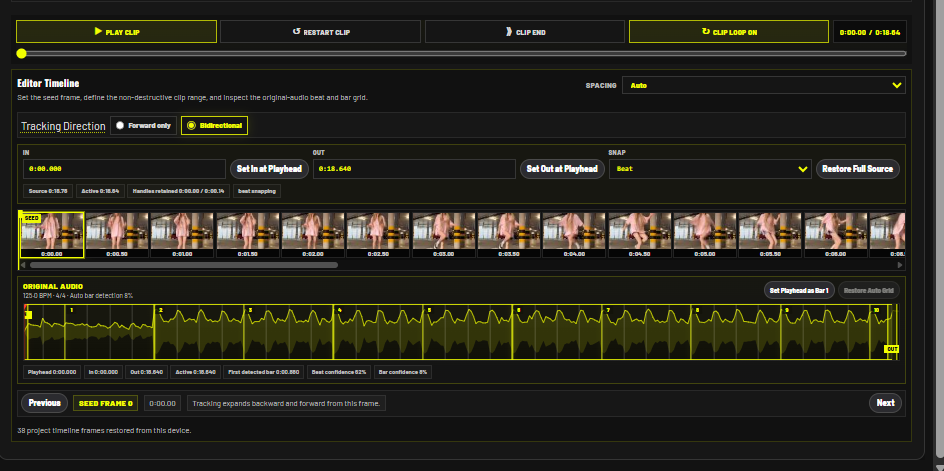
The Original stage is where the source range and tracking setup are established.
Transport
The transport directly below the source preview controls the Original clip. Use Play/Pause, Restart, End/Latest, Loop, and the scrub bar.
Editor Timeline scale
Use the timeline scale control to zoom the filmstrip and waveform horizontally. Fit displays the full source or active working range within the available width.
Non-destructive In and Out
The active range determines what path generation and rendering use.
You can change it by:
- dragging the IN and OUT handles;
- entering exact time in seconds or
minutes:seconds.milliseconds; - choosing Set In at Playhead or Set Out at Playhead;
- choosing Restore Full Source.
Source outside the active range is retained and can be restored later.
Snap
Trim handles can snap to:
- frames;
- beats;
- bars;
- clip boundaries or other contextual marks;
- free placement.
Beat and bar snapping require usable audio analysis. A snapped In point may be slightly later than 0:00 if the first valid beat/grid line is later; select free or frame snapping to place it exactly at source start.
Preview In → Out
Use Preview In → Out to check the selected range with the active audio before rendering. Enable Loop Active Range for repeated alignment checks.
Tracking direction
- Forward only begins at the seed and tracks forward.
- Bidirectional expands backward and forward from the seed.
Bidirectional tracking is useful when the clearest face occurs in the middle of a clip.
Choosing the seed frame
Choose a frame where:
- the intended dancer is visible;
- the face is not heavily occluded;
- motion blur is limited;
- the dancer is not at an extreme edge;
- the scale is representative enough to place the seed accurately.
The seed filmstrip and arrows let you move between candidate frames.
Framing and seed placement
Seeding and initial framing are one setup step:
- use Base Frame Scale to size the output crop;
- use Manual Offset X and Manual Offset Y to position it;
- use center guidance and the phone vibration cue to align body/head centers when helpful;
- click the dancer's face to place the seed;
- confirm framing.
The image itself is not a free-drag framing surface; use the manual offset controls. Clicking the image is reserved for seed placement.
The seed graphic remains visually usable at different preview zoom levels rather than scaling into an oversized target.
Framed preview
After confirmation, the still preview should show the selected crop. If it does not match the framing step, cancel setup and reconfirm before generating a path.
8. Generating and reviewing a camera path
Before generation
Enable only the systems that need path-time analysis. Every unnecessary detector increases work, especially on a phone.
Typical minimal setup:
- Face Tracking on;
- Body Framing on if desired;
- body/pose tracking off unless a feature depends on it;
- heavy masks and effects off until the path is validated.
Some effects legitimately request dependencies such as landmarks or the Subject Edge Mask. TrackDat may enable those dependencies automatically.
Generate Path
Select Generate Path. The workflow ring changes to PATH progress. Select the ring or Cancel while a cancellable job is active.
If Automatically render after path generation is enabled, TrackDat transitions to render after the path finishes.
Queue Path and Queue Path + Render
The processing queue is useful for multiple clips:
- Queue Path adds path generation.
- Queue Path + Render adds the path and its dependent render.
- Queue Render is available when a valid path exists.
The Processing Queue can run, pause, retry failures, cancel the current item, or clear completed items.
Path review
The Path stage shows:
- current status and generated-frame count;
- the camera-path preview;
- a generated-frame filmstrip;
- shared playhead and transport;
- Original and Replacement Audio grids;
- automation lanes;
- confidence and tracking diagnostics;
- Layer Manager.
Generated filmstrip
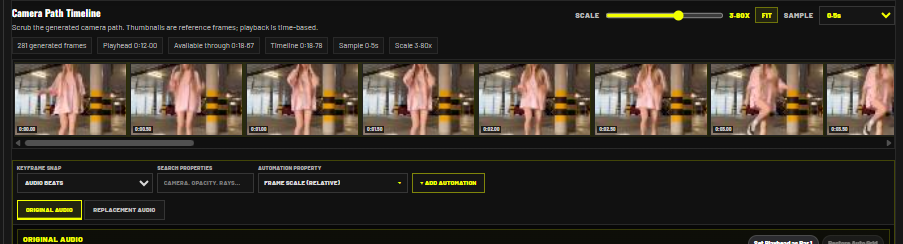
The filmstrip is sampled reference imagery; playback remains time-based. Controls include:
- Scale — changes timeline density;
- Fit — fits the complete generated range;
- Sample — changes reference-frame interval;
- horizontal scrolling;
- the active playhead frame;
- trim handles and grid marks when editing the clip range.
The reference roll is cached locally. It may rebuild after storage is cleared, the source changes, or a cache cannot be restored.
Live and Loop during path generation
- Live only shows the newest generated frame and remains muted.
- Loop only plays the currently available range with audio.
- Live + Loop plays the current range with audio and admits newly generated frames on the next loop.
Tracking loss
If the path loses the dancer:
- inspect the confidence section around the failure;
- confirm the correct seed identity;
- reduce the active range to isolate the problem;
- use bidirectional tracking from a clearer seed;
- reduce unrelated path-time systems;
- tune face reacquisition, body framing, or headlock behavior;
- regenerate.
Path stale
Regenerate only if a PATH setting, seed, source, direction, or clip range changed. A RENDER-only setting should allow reuse of the existing path.
9. Project Timeline and multitrack editing
The Project Timeline separates project composition from individual clip correction.
Composition tab
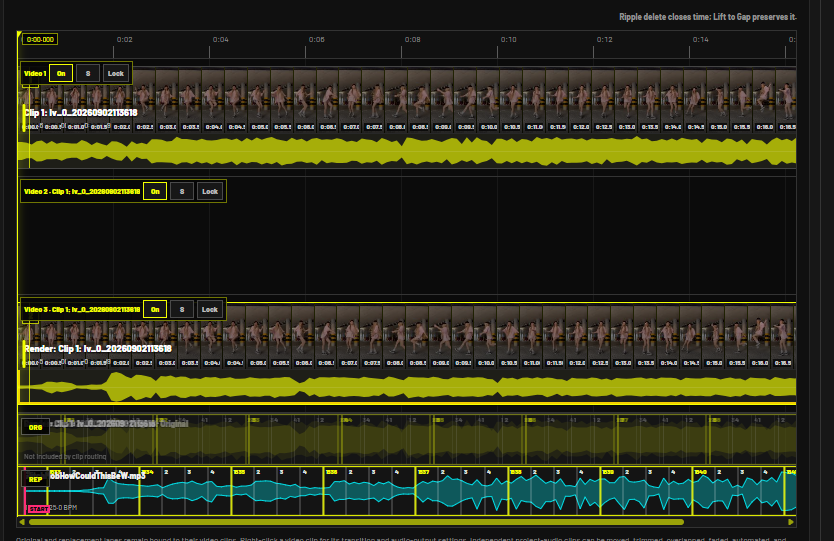
The Composition tab shows stacked video tracks and associated audio lanes.
Active Clip tab
The Active Clip tab opens the selected clip's camera-path workspace. Clicking a composition clip selects it; switch to Active Clip when you want detailed path, audio, or keyframe editing.
Video tracks
Each video lane has controls for:
- enable/on;
- solo;
- lock;
- remove lane when appropriate;
- clip selection and context-menu operations.
Filmstrips use the same retained/generated camera-roll style as the Active Clip timeline when those frames are available. Missing media or cache permission is reported instead of silently inventing thumbnails.
Audio presentation
Audio is not drawn twice inside a video clip and again as a full redundant lane. The composition distinguishes:
- compact clip audio information;
- original clip audio lane;
- replacement clip audio lane;
- independent project audio tracks.
An empty audio lane collapses to a compact row that still identifies it as empty.
Selecting versus editing
A click selects a clip for project operations. Detailed clip editing happens in Active Clip. Right-click a clip for contextual operations without permanently consuming toolbar space.
Common editing operations
- Undo / Redo — project edit history.
- Splice — split selected material at the playhead.
- Move Earlier / Later — reorder or move in context.
- Duplicate Before / After — duplicate without modifying the source.
- Ripple Delete — remove and close time.
- Lift to Gap — remove while preserving time.
- Close Gap — close a selected empty interval.
- Add Marker — create a timing marker.
- Copy / Paste / Delete — operate on selected timeline objects.
- Add Video Track — create another video lane.
- Insert Media — add media at the playhead.
- Add Audio Track — import independent project audio.
- Titles / lower thirds / text / end cards — add presentation items.
Splice behavior
Splicing creates non-destructive clip segments. It does not re-encode the source. A completed splice should be one undoable operation, even if a handle generated many pointer-move events.
Removing clips and lanes
Deleting the only clip in a lane should leave an intentionally empty lane only when the lane itself remains useful. Use the lane remove control to remove the empty track. Both clip deletion and lane deletion belong in undo history.
Snapping and scale
The composition scale and snap mode apply consistently to video, audio, automation, confidence displays, and timeline-based elements. Use:
- Beats for musical editing;
- Bars for phrase changes;
- Frames for picture-accurate cuts;
- Free for unrestricted placement.
Transitions and audio routing
Right-click a video clip to access its transition and audio-output settings. Transition settings apply when an active clip directly follows another clip. Audio routing can select original, replacement, mix, or silent behavior, with available volume controls.
Adding completed renders
From the Renders list:
- Add as Track creates or targets a video track for layered/multitrack work.
- Add to End appends it to the sequence.
Use this deliberately. Rendering a clip does not automatically insert every render into the composition.
10. Automation and keyframes
Automation changes a property over time.
Opening automation
There are two main entry points:
- select a property by category in the Active Clip automation controls;
- select the diamond beside a keyframeable custom slider.
The categorized property menu prevents one unstructured list from becoming unmanageable.
Adding a keyframe
Graph clicks move the playhead; they do not create keyframes. To create one:
- move the playhead;
- set the desired property value;
- select Add Keyframe or the property's diamond action.
This prevents accidental keyframes when selecting or correcting points.
Keyframe snapping
Keyframes can snap to:
- audio beats;
- audio bars;
- frames;
- clip boundaries;
- free placement.
Editing points
- click a keyframe to select it;
- drag it to change time/value;
- Ctrl/Cmd-click for multiple selection;
- drag selected points as a group;
- copy and paste at the playhead;
- delete selected points explicitly.
Keyframe markers are square/diamond shaped and retain their aspect ratio.
Curves
Right-click the line segment between keyframes to choose a curve type. Curves apply to the segment rather than requiring manual numeric Bézier handle fields for normal editing.
Generated automation
Some systems can generate editable keyframes, such as Compositional Zoom. Generated lanes are exposed when the feature has actually been enabled and produced meaningful data; unused features should not fill the timeline with empty tabs.
Compositional Zoom
Compositional Zoom can analyze musical structure and dancer motion to build Frame Scale keyframes. Use it for phrase-level changes such as:
- a wider opening;
- a zoom on a drop;
- an emphasized transition;
- a tighter low-energy section;
- a brief zoom spike.
Generated points are a starting edit, not a locked result.
11. Audio analysis, BPM, replacement tracks, and music warping
Audio Analysis
Audio analysis builds:
- amplitude envelope;
- waveform data;
- FFT spectrum bands;
- beat and bar candidates;
- timing data used by audio-reactive effects.
It starts automatically after an audible video is imported. Use Analyze Audio + FFT to rerun it.
BPM Detection
Detect BPM estimates tempo and presents candidates. Select the interpretation that fits the music. Half-time and double-time relationships can describe the same pulse; TrackDat favors useful interpretations within the configured likely tempo range but leaves the final selection to the user.
The panel reports:
- selected BPM;
- raw detected BPM;
- candidate confidence;
- bar grid and time signature;
- first-bar estimate;
- beat and bar confidence.
Use Set Playhead as Bar 1 to correct phase. Restore Auto Grid returns to automatic detection.
Original Audio tab
The Original Audio timeline shows the analyzed waveform and beat/bar grid. It can preview the active range and move In/Out handles using the selected snap mode.
Replacement Audio tab
When a replacement track is selected, this tab shows its waveform, beat/bar grid, source In/Out handles, and music start alignment.
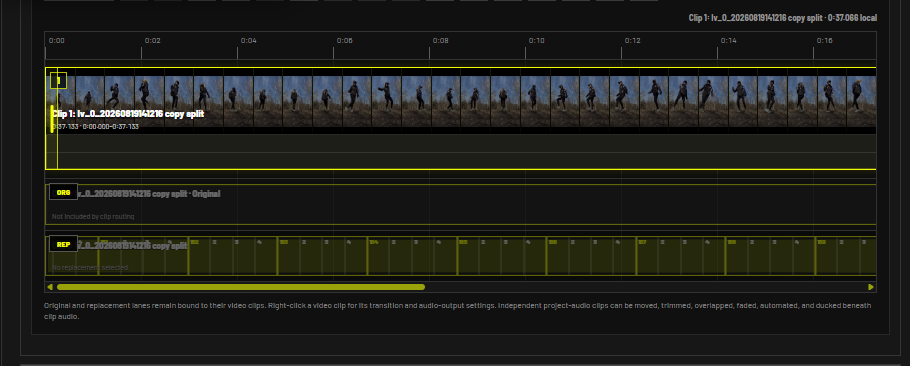
When the original is silent and a usable replacement exists, Replacement Audio receives tab priority.
Transport follows the selected audio tab:
- Original Audio plays original audio.
- Replacement Audio plays the replacement.
Final Render Audio
Choose how audio is routed into the rendered clip:
- keep original;
- use replacement;
- mix original and replacement;
- mute/silent output.
Use the available original/replacement volumes, start alignment, looping, fades, and clip routing controls.
Original Audio Warp
Video Speed changes video presentation timing. Audio remains unchanged unless audio warping is enabled. Original Audio Warp provides pitch-preserving tempo adaptation so music can follow the intended output timing without the obvious pitch shift of simple resampling.
Track Library
The Track Library analyzes local music and ranks candidates by BPM compatibility and other available metadata.
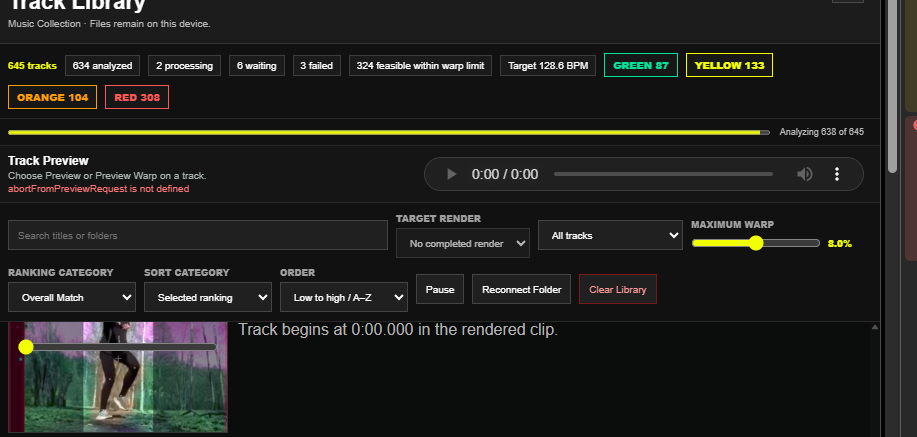
Choosing a folder
Choose Track Folder and grant access. The browser may label the operating-system action “Upload,” but TrackDat reads the files locally; it is not a promise that the folder is uploaded to a server.
The library:
- lists supported tracks quickly;
- analyzes BPM cumulatively;
- retains completed analysis locally;
- resumes unfinished analysis later;
- may require Reconnect Folder after browser permission expires.
Ranking bands
Tracks are grouped by required tempo warp:
- Green — closest/most comfortable match;
- Yellow — moderate adjustment;
- Orange — stronger but permitted adjustment;
- Red — exceeds the selected maximum or is a poor match.
Change Maximum Warp to define the feasible set. Sort by selected ranking, BPM, title, file information, or other available categories; choose ascending or descending order.
Per-track actions
- Play — quick unwarped preview.
- Preview Warp — hear the warped candidate.
- Adjust Track — open precise source-range and grid alignment.
- Warp + Apply — assign it to the active clip.
- Warp + Preview Render — combine it with a selected completed render without rerendering frames.
- Warp + Download — create a downloadable version when a valid target render exists.
The target-render selector defaults to the latest completed render but can target another retained render.
Warp + Preview Render
The modal reuses the rendered clip roll, replacement waveform, beat/bar grid, snapping, In/Out handles, and standard player controls. Set the track start against the render before building the preview.
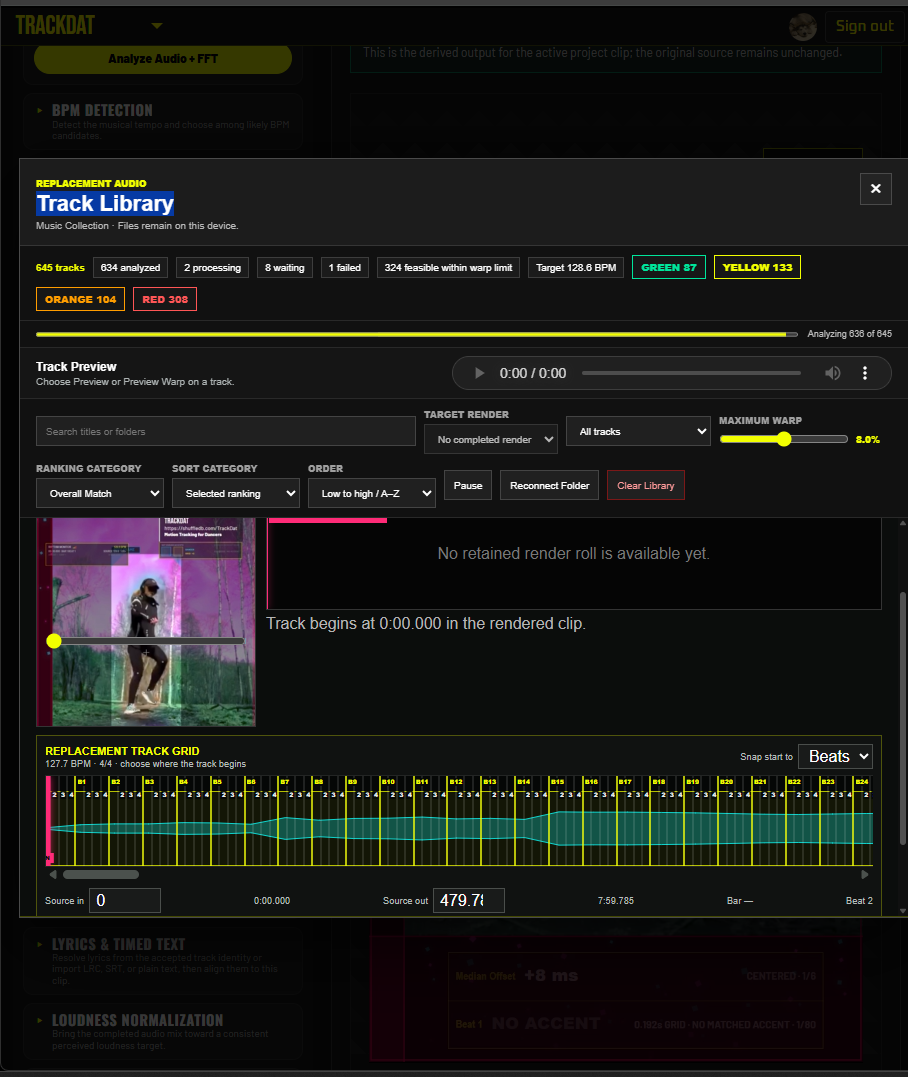
This operation updates or remuxes audio against an existing completed video. It does not need to rerender every video frame.
Track identity, cover art, and lyrics
Track identity can draw from embedded metadata and configured recognition providers. Retained identity may include title, artist, album, cover art, genre/style hints, and service identifiers.
Lyrics & Timed Text can use imported LRC/SRT/plain text or configured sources. Review alignment and rights before publishing. Lyrics can feed text overlays or Narrative Pane content.
Loudness tools
- Loudness Normalization targets a consistent perceived level.
- Compressor reduces dynamic range.
- Limiter prevents peaks from exceeding a ceiling.
A practical chain is normalization, gentle compression, then limiting. Avoid maximizing every stage; excessive processing causes pumping and distortion.
12. Motion rhythm, quantization, and timing accuracy
Motion Rhythm
Motion Rhythm estimates tempo and beat phase from generated dancer motion rather than audio. It can report:
- estimated tempo and confidence;
- visual beat grid;
- motion accents;
- stable-region or planted-foot information;
- half-time/double-time interpretations;
- editable visual grid and phase correction.
It requires a generated path with sufficient body/landmark information.
Target Source Audio Grid
This action is meaningful only when an audio grid exists. For a silent clip, add or select replacement audio before aligning dancer motion to an audio grid.
Motion Quantization
Motion Quantization builds a reversible time map that gently pulls motion accents toward the selected grid.
Controls include:
- quantization strength;
- maximum local speed change;
- maximum anchor shift;
- planted-foot locking.
Select Build Motion Time Map after changing these controls. Restore Original Timing removes the time map. The source remains untouched.
Global Video Speed and the motion time map are separate. Building a time map should not silently reset the global speed.
Dancer Timing Accuracy
This compares detected motion accents with the selected beat grid. It can report:
- per-beat early/late offset in milliseconds;
- median offset;
- consistency/variation;
- confidence;
- accent strength;
- planted-foot or stable-region context;
- color-coded timing severity.
The BPM display can be hidden or configured to show:
- selected track tempo;
- adjusted/output tempo;
- another explicitly labeled supported source.
If the Rhythm Monitor or Dancer Timing Accuracy overlay is enabled after path generation, TrackDat can automatically run the missing motion analysis needed to populate it.
Rhythm Monitor
The monitor can display dancer and grid pulses plus cached audio-band pulses for sub-bass, kick, and hi-hat. “No accent” means no motion accent met the matching criteria for that beat; it does not necessarily mean perfect timing.
Combined and split-pane modes are available. Split panes can be positioned independently, and narrower panes wrap content into additional rows without shrinking the configured text size.
13. Video processing
Source Video
Use Source Video to show/hide the original footage independently in preview and render. Opacity controls allow the source to remain faintly visible. Hiding it is useful for rig-only, mask-only, floor-only, or transparent-style compositions when the output/background permits it.
Color Adjustments & Filters
Common controls include:
- brightness;
- contrast;
- saturation;
- temperature;
- tint;
- hue;
- grayscale;
- sepia;
- blur;
- fade/wash;
- vignette strength, reach, and curve;
- sharpen where available.
The background can be protected or targeted with the Subject Edge Mask. A separate dancer-filter section applies equivalent adjustments only to the dancer. Vignette is intentionally a background/full-frame treatment rather than a dancer-only filter.
Frame Background
Fills empty canvas around reframed video. Modes can include blurred video fill, solid/edge-derived colors, and stylized generated backgrounds. Preview and render can be enabled separately.
God Rays and God Rays 2
- God Rays is the simpler original renderer: directional light scattering from bright regions without a later source-shaping field.
- God Rays 2 is the expanded renderer with locally seeded shafts, source shaping, motion direction, and additional controls.
Direction controls the orientation of rays; motion controls are required for rays to travel or animate.
Digital Smoke Machine
Generates configurable smoke with density, puff size, softness, rise, height, turbulence, wind, source placement, edge haze, quality, blend mode, and dancer masking.
Density above 100%, large puffs, segmentation masks, high feathering, and high quality multiply cost. Start with Low/Fast and moderate density.
Dust Particles
Adds atmospheric particles. Use density, size, motion, color, depth, audio reaction, and Subject Edge Mask integration to keep particles behind or outside the dancer.
Musically Timed Glitter
Creates audio-reactive glitter. Controls include palettes such as Galaxy Glitter, density up to the supported expanded range, sparkle/twinkle shapes, directional travel, bar sequences, motion speed, beat division, audio source, and dancer masking.
Plus Grid
Draws a configurable grid of plus marks over the visible video frame and can mask the dancer.
Digital Laser Light Show
Supports layers, presets/sequences, thickness, colors, geometry, intersections, BPM divisions, and masking. Mask sources can use the filled subject or contour-derived mask. Box exclusion can keep lasers outside selected tracked boxes.
Path preview and final render use the same effect settings, but final encoding may display smoother temporal output than sparsely sampled path reference frames.
Strobe, slideshow, fade, and presentation
- Black / White Strobe — timed flash treatment.
- Image Slideshow — image sequence overlay/background.
- Fade In / Out — clip presentation fades; persisted per project/preset.
- Intro / Outro Clips — ordered clips around tracked content, with minimum quarter-second duration and speed control.
- Video Timing — global video speed; audio remains unchanged unless warping is selected.
14. Tracking controls
Tracking Engine
Controls detector choices, tracking frame rate, and related processing. Higher tracking FPS improves temporal sampling but costs more. Start low enough for the device, then increase only if the motion needs it.
Camera Motion
Controls smoothing, lookahead, response, drift, bounce, and other camera-path behavior.
Face Tracking
Tracks the seeded dancer's face and maintains identity. The seed establishes who to follow; face reacquisition and identity guards reduce jumps to other people.
Body Framing
Uses pose/body bounds to contain the dancer. Controls can include:
- torso tracking;
- hand inclusion;
- safe box;
- zoom-out response;
- padding;
- lookahead and curve;
- scale response;
- body attribution;
- Y framing offset.
Scaling is centered around body/torso logic rather than a fixed top-left image origin.
Scale Consistent Body Framing
Keeps the dancer at a more consistent on-screen height as the dancer approaches or moves away from the camera. It behaves like controlled auto zoom and is separate from simple containment.
Compositional Zoom
Builds editable scale keyframes from music structure and dancer motion. It must be enabled before generation/use; opening the panel alone does not activate it.
Edge-Constrained Headlock Release
Relaxes or redirects headlock when source-edge collisions would otherwise force poor framing. Use it to let the dancer leave a tightly captured area more naturally.
Motion effects
Post Render Stabilization, Vertical Bounce Exaggerator, and Tilt Rotation modify camera presentation. The final render frame itself remains an output boundary and should not rotate with camera-rotation effects.
15. Tracking overlays and visual effects
Preview and Render toggles
Many overlays have separate checkboxes:
- Preview — visible while editing/path review.
- Render/Export — included in final output.
An enabled checkbox stays visibly yellow even while processing locks interaction.
Subject Edge Mask
The Subject Edge Mask is the shared dancer silhouette system. It combines pose-scaled search regions, edge/contour evidence, gap closing, spike removal, hole filling, feathering, and temporal stability.
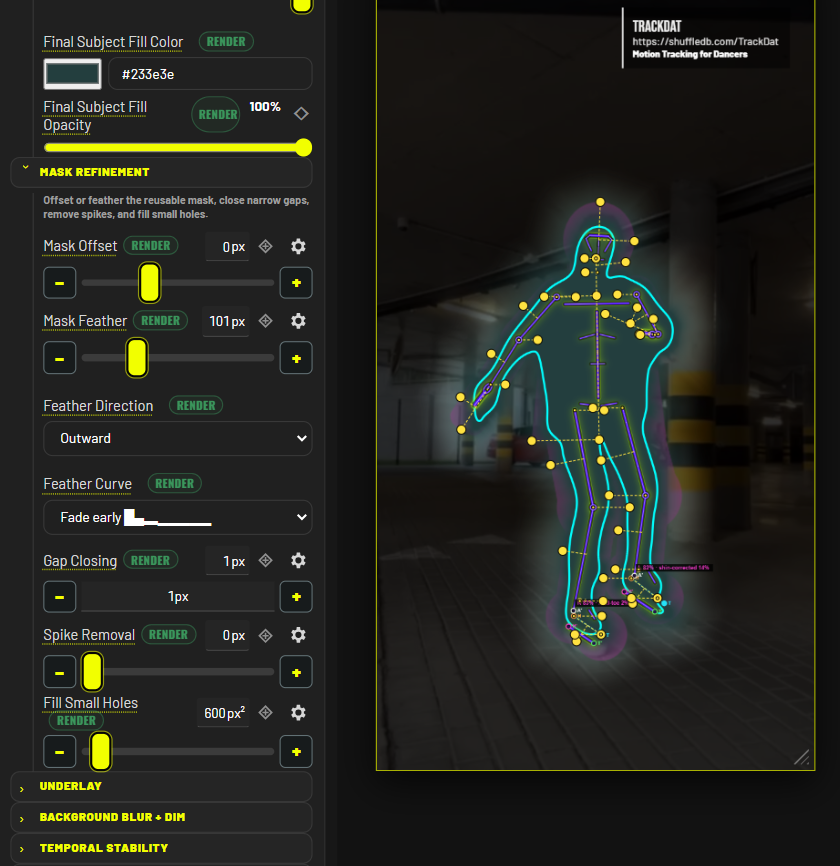
Main groups:
- Edge Detection — how the contour is found.
- Edge Appearance — visible line/fill styling.
- Mask Refinement — offset, feather, curve/intensity, gaps, spikes, holes.
- Background Blur + Dim — treatment outside the dancer.
- Temporal Stability — reduces frame-to-frame chatter.
- Feet & Floor Rejection — manages difficult shoe/floor boundaries and can exclude feet.
Dependent effects can automatically enable the mask. Their local feather/curve controls modify that effect's use of the mask; they do not rewrite the Subject Edge Mask's universal refinement settings.
Static Background Mask
Builds a background model from samples across the source. It is intended for a genuinely static camera and background. Camera movement, prior reframing, changing light, compression shimmer, and moving shadows can be mistaken for foreground.
Use it in isolation while testing. Adjust sample count, thresholds, fill colors, and stabilization. Prefer Subject Edge Mask when the source or camera moves.
Dancer Rig
Draws pose lines and configurable body/foot geometry. The Subject Edge Mask can silently use rig search geometry, but rendering the rig is controlled separately.
Foot controls include ankle centering, sole offset, endpoints, upper shoe line, ankle-to-toe axis, and parallel-line behavior. Calibration dots/lines can be rendered from the Rig/Underlay controls without merging them into Landmark Dots.
Perspective Floor
Creates a floor plane tied to source perspective, camera motion, audio, and foot contacts.
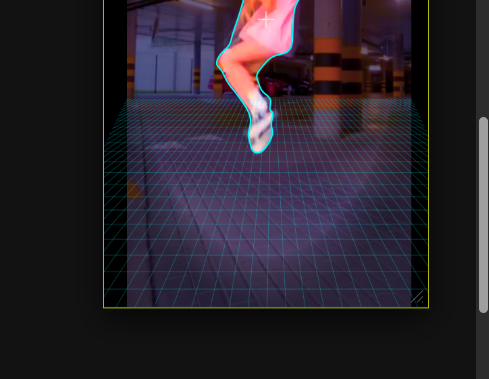
Important groups:
- filmed-camera mode;
- moving-camera tracking;
- floor movement;
- audio-reactive floor;
- dancer interaction;
- geometry and material;
- grid animation;
- scene transitions;
- floor plane and horizon;
- manual floor quad;
- auto/fixed camera seam;
- grid style;
- floor impacts;
- dancer mask;
- calibration/output.
Use the horizon control in Path preview to align the floor visually. Auto Seam Strength should affect confidence/blending rather than unexpectedly becoming a second horizon-position control; use Floor Seam Y for the explicit seam. Grid width can exceed source width when source-width constraint is disabled. Equal/Square spacing compensates for perspective so cells read as squares on the plane.
Foot-impact effects use foot contact projected onto the floor plane. Adjust impact vertical offset when the foot box baseline does not match the visible sole. Water ripples are perspective-projected circles, so they should not appear as arbitrary narrow eggs.
The Perspective Floor's dancer feather and curve are local occlusion controls and do not alter the universal Subject Edge Mask.
Landmark Dots
Draws tracked landmarks with configurable size, opacity, and color. This is separate from the Dancer Rig and calibration overlay.
Landmark Effects
Available systems include:
- Pulse Tracer;
- Kinetic Aurora;
- Velocity Sparks;
- Impact Rings;
- Constellation Rig;
- Joint Orbitals;
- BPM Beat Bloom;
- Motion Heat Map;
- Ribbon Threads;
- Glitch Landmarks;
- Toroidal Field;
- Dodecahedron Field;
- Icosahedron Field;
- Metatron's Cube;
- Geodisc.
These panels expose settings directly when opened; a second “open again to edit” layer is not required. Dancer masking controls are local to each effect and can include feather curve and intensity.
Joint Orbitals supports joint groups and subitems plus multiple orbital shapes, including polygonal, star, and pentagram forms, with rotation and BPM response.
Audio Spectrum Visualizer
Shows audio-band activity. It can be placed relative to the frame or body box while retaining editable X/Y controls. Its rendering is intentionally clean, without the removed glow treatment.
Music Cover
Uses retained track identity/cover art to show album artwork and metadata.
Blob Tracer
Builds stylized blobs from frame pixels or edge contrast. It can update continuously or be placed on audio divisions, use the Subject Edge Mask, and place geometry behind the dancer.
Tracking HUD
Displays status/diagnostic tracking information for preview or output when explicitly enabled.
Dancer Timing Accuracy and Rhythm Monitor
These are movable/resizable output overlays for timing and beat information. See Motion rhythm, quantization, and timing accuracy.
Face Mask, Nametag, ASCII, GIF, and Narrative Pane
- Face Mask — full-face image or feature-specific media tied to tracked eyes/nose/mouth.
- Nametag — label attached to a tracked body point with connector styling.
- ASCII Art Animation — generated or imported text-art frames.
- Animated GIF Overlay — tracked/movable animated media.
- Narrative Pane — timed text cards with height, drag placement, ordering, and a configurable hold after the last pane ends.
Instagram Layout Guide
Shows Instagram interface exclusion areas so overlays can be placed safely. Profiles include supported Reels/Feed layouts. Guide opacity and labels are configurable.
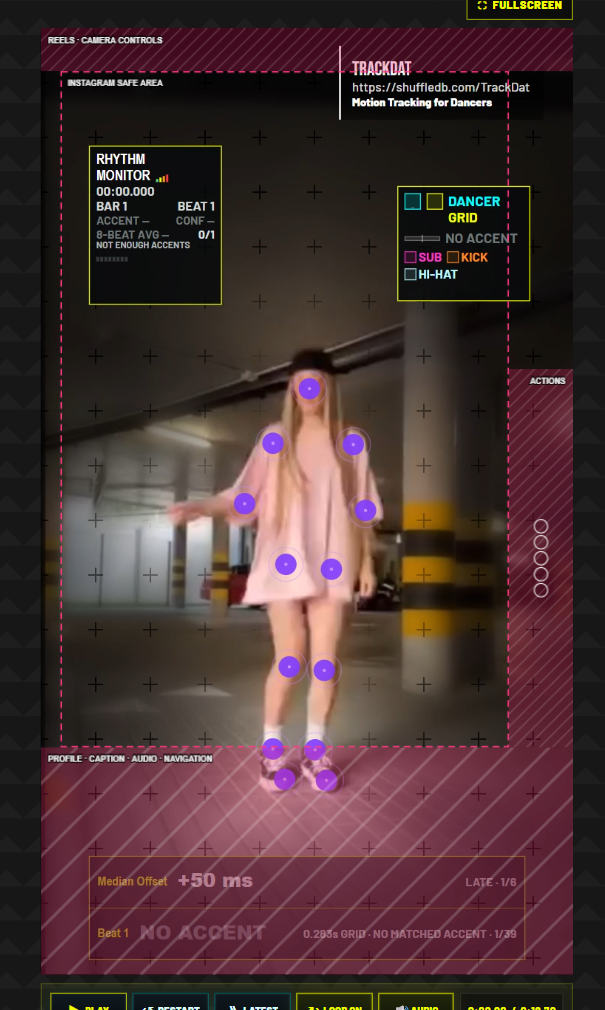
Preview and Render can be selected independently. Disable Render when the guide is only a layout aid.
Watermark
The TrackDat corner watermark can be previewed and rendered independently where permissions allow. Default presentation rules may force it for designated users/build modes.
16. Layer Manager
The Layer Manager controls draw order for enabled overlays and effects.
Visibility versus order
An effect can appear in the sidebar but remain absent from the Layer Manager until enabled. Layer order does not enable an effect.
Reordering
Move layers from foreground to background according to the desired occlusion. For example:
- watermark and UI text;
- timing overlays;
- rig/dots;
- foreground particles;
- dancer;
- behind-dancer lasers/smoke;
- perspective floor;
- source/background.
Masking is often better than order alone. If a laser must appear behind the dancer, select a dancer mask rather than assuming layer order will cut the lines cleanly.
Effect-specific layer systems
Digital Laser Light Show can contain multiple internal layers and sequences. These are edited inside its layer editor, while the entire laser system also occupies a position in the main Layer Manager.
17. Rendering and export
Queue Render
A valid path is required. Render uses the active range, camera path, render settings, layers, presentation clips, and audio route.
During render
The workflow ring reports Render progress. The Processed preview can show generated frames as they arrive. You can review other stages when unlocked, but avoid heavy UI work on a device already near its memory limit.
Completion behavior
When rendering completes, the completed player resets to the beginning. Reloading or changing a template should also begin from the start rather than restoring an unintended final-frame playhead.
Re-rendering
When an older render exists, starting a new render shows the new frame-generation process instead of leaving the previous completed video as if it were current.
Update Audio
When only audio changes, TrackDat can reuse completed video and remux/update audio. This is faster than drawing every frame again and supports making multiple music versions from one visual render.
Export formats
- MP4 / CapCut Compatible — preferred interchange target.
- WebM / Browser Fast — faster browser-native option.
If the browser cannot produce true MP4, TrackDat can report a WebM fallback. Guaranteed MP4 may require the FFmpeg conversion path.
Clip export
The export summary reports format, output frame, resolution, quality, settings cards, source size, range, path frames, pose/fallback counts, and related information.
Available actions can include:
- render/download current clip;
- download completed render;
- share MP4 to Instagram/device share sheet;
- send/create an EditDat item;
- download Camera Path JSON.
Complete project export
Complete Project Export composes processed clips in timeline order with transitions, gaps, timed titles, project audio, intro/outro, and configured presentation.
All required clips must have connected, readable processed media. If a recovered project says a processed file is unavailable, re-render or reconnect it before composition export.
Tainted canvas error
If export reports that the render canvas was tainted, a remote image/video was drawn without CORS permission. Use an imported local file or a CORS-enabled source for face masks, cover art, GIFs, slides, and remote media.
Audio mux memory error
If FFmpeg reports memory access out of bounds:
- shorten the range;
- use a smaller output/resolution;
- close other memory-heavy tabs;
- avoid stacking multiple simultaneous conversions;
- try WebM/browser-fast output;
- reconnect/redecode the audio;
- retry on a laptop/desktop.
18. Playback, live preview, pop-out, and keyboard controls
Standard transport
TrackDat uses a consistent transport language:
- Play/Pause;
- Restart;
- Latest/End;
- Loop On/Off;
- Audio/Mute where applicable;
- scrub bar;
- current time / duration.
Keyboard controls
When focus is not inside an input or text editor:
| Key | Action |
|---|---|
| Space | Play / pause |
| R | Restart at the beginning |
| E | Jump to latest/end |
| L | Toggle loop |
| Left / Right | Step through focused beat/grid timing where supported |
| Escape | Close the top modal, including Track Library |
Buttons expose their shortcuts in tooltips.
Floating Live Preview
When more than roughly half of the main stage scrolls out of view, the floating preview appears unless a separate pop-out is active.
It can be:
- dragged by its title bar;
- resized from the lower-right corner while the upper-left stays fixed;
- collapsed;
- dismissed for the current visibility pass;
- popped into a separate window.
Its position and size are remembered. It is constrained below the site header so the drag handle cannot become trapped.
Pop-out Preview
The separate window follows the active preview and playback state. It includes the full visible frame, including preview overlays and calibration graphics, and is sized so the bottom of a vertical video is not hidden on open.
Close the pop-out to return rendering responsibility to the in-page stage or floating preview.
Fullscreen processed player
Use the fullscreen control above the rendered frame. The standard transport remains available at the bottom in fullscreen mode.
19. Mobile workflow and performance
Recommended mobile sequence
- Test a short range first.
- Use a lower tracking FPS.
- Generate the path with only required tracking.
- Review tracking loss.
- Enable one expensive mask/effect at a time.
- Use Low/Fast render quality while designing.
- Render final quality only after the look is stable.
Avoid accidental browser gestures
TrackDat disables selection and native touch/context interactions across noneditable interface chrome. Media surfaces retain intentional save/context behavior. Inputs, selects, buttons, timelines, handles, and custom context menus remain interactive.
Sequential decode disrupted
This usually means the phone could not keep up with decoding/seeking pressure or the browser recycled media state. Reduce tracking FPS, shorten the range, disable unused path-time dependencies, close other apps/tabs, and retry from the start.
Prevent invisible work
An unchecked feature should not run unless an enabled feature explicitly depends on it. Subject Edge Mask, landmarks, pose, and audio analysis can be silent dependencies; explanatory copy in the dependent panel should identify that relationship.
Smoke and segmentation cost
Smoke with dancer masking, large feathering, high density, and high quality is one of the heaviest combinations. Use lower quality and moderate density for previews.
Storage pressure
Many filmstrips, analyses, and completed renders can fill browser storage. Download important projects/renders, then remove obsolete recovery checkpoints and render entries.
20. Troubleshooting
The project restored, but the video is not loaded
The project state was restored while local media permission was not. Use Reconnect Source and select the same file.
A CapDat pairing code fails
Pairing codes expire after ten minutes and can be claimed only once. Create a new code at /CapDat, confirm that the phone has internet access, and enter the replacement code without spaces. If the phone is paired to the wrong account, use Forget Pairing and pair again while signed into the intended ShuffleDB account.
A CapDat project does not appear in the inbox
On the phone, open the gear → Source → TrackDat Bridge. If projects are waiting, choose Send Pending and keep CapDat available while the files transfer. Confirm that the site and phone use the same paired account, then use Refresh in the web inbox.
The gallery export and the bridge upload are separate. Seeing a video in Movies/CapDat confirms the gallery save, not the server transfer.
A CapDat project says Uploading
At least one declared asset has not passed its size/checksum validation. Resume with Send Pending on the phone. The server resumes at its last confirmed byte rather than starting a completed chunk over. If the phone reports a checksum or source-file error, keep the local package and retry before clearing app data.
Opening a CapDat project fails
Confirm that the inbox status is ready, remain signed in, and retry Open in TrackDat. TrackDat must download every private asset and read its duration before constructing the timeline. A very large project can take time and requires enough browser memory and free local storage.
If import stops, return to /CapDat; the server copy remains in the inbox. Reopening it starts a fresh TrackDat import without changing the uploaded originals.
Audio analysis is unavailable
Check whether the video actually contains an audio stream. If silent, use replacement audio. If audible, reconnect the source and rerun Analyze Audio + FFT.
BPM detection produces nonsense on silence
Do not select a candidate. A true silent source should be reported as no audio. Add replacement music before using audio-grid features.
Path says Ready but does not match settings
Look for a stale warning. PATH changes require regeneration; RENDER changes require only re-rendering.
A disabled overlay still appears
Check Preview and Render separately, then check related overlays and dependencies. Rhythm Monitor and Dancer Timing Accuracy are separate. Calibration overlays are separate from Landmark Dots. Start a new render so an older completed render is not mistaken for current output.
The mask edge is abrupt
Increase the effect's local mask feather, choose a gentler feather curve, and tune curve intensity. Confirm the effect is using Filled Subject Edge rather than an unintended box or contour-only mask. Do not adjust the universal Subject Edge Mask unless every dependent effect should change.
The head/hat is clipped
Increase head search padding or the Subject Edge head region. The pose/face rig defines a body-scaled search area; a large hat may extend beyond the initial face contour even when facial landmarks are correct.
Shoes or feet leak through a mask
Use Feet & Floor Rejection, foot exclusion, local mask offset, gap closing, or effect-specific feathering. Inspect ankle/sole rig calibration before compensating with extreme global feather.
The floor horizon moves after reload
Verify the active clip and preset, then check Floor Seam Y, auto seam strength, and saved floor state. Use the Path preview horizon handle for visual alignment and save the project/preset after tuning.
Floor impacts do not align with feet
Tune the floor plane first, then adjust impact vertical offset. The impact point is projected from the foot-box/sole baseline onto the 3D floor.
The laser effect appears only in final render
Confirm Show in tracking preview and effect Preview are enabled. Path filmstrip frames are sampled references; scrub or play the path preview to inspect temporal effects. Regenerate cached preview frames if they predate the enabled effect.
Replacement audio previews but is absent from render
Check Final Render Audio routing, replacement volume, source In/Out, music start, and clip routing. Apply the selected track to the active clip, then use Update Audio or re-render.
A completed render is lost after reload
Project metadata can survive when a large render blob cannot. Check Renders and recovery messages. If the render media is unavailable, re-render; project/path state should still be reusable.
Camera rolls regenerate
The local cache may have been cleared, exceeded, invalidated by a source/path revision, or unavailable during hydration. Keep the tab open until the roll is saved; reconnect media if requested.
Track Library has no rankings
Select a target BPM/source, confirm analyzed tracks have BPM, and set a nonzero Maximum Warp. Choose a valid target render for render-specific actions. Reconnect the folder if file handles expired.
Warp preview stays on Preparing
Watch the progress and status line. If there is no progress for an extended period, cancel/close, reconnect the music and target render, shorten the selected range, and retry. Large browser FFmpeg operations may exceed device memory.
Render is stuck near completion
The last portion can include encoding, audio muxing, presentation assembly, metadata, and storage. The progress label should state the active finalization phase. If the phase stops changing for several minutes, capture the in-app console report and retry a shorter range.
Application error / client-side exception
- Open the browser console.
- Record the first red error and its component/file/line.
- Use TrackDat's indirect console/error report if available.
- Reload once.
- If project recovery causes the crash, start clean and restore a checkpoint.
- Report the exact action immediately before the failure.
In Chrome, open only the console with Ctrl+Shift+J on Windows/Linux or Cmd+Option+J on macOS.
Sign-in does not persist
Check cookie/storage blocking, private mode, cross-site restrictions, and whether the site was cleared. A configured long session cannot survive manual site-data removal or a browser policy that rejects its persistence.
21. Recommended recipes
Clean dancer-following vertical video
- Set a short active range.
- Seed the face on a clear frame.
- Enable Face Tracking and Body Framing.
- Use moderate safe box, padding, and lookahead.
- Generate and review Path.
- Enable Subject Edge Mask only if a render effect needs it.
- Render 720×1280 while testing.
- Render final MP4 at the intended quality.
Dancer isolated over a dark background
- Enable Subject Edge Mask.
- Tune contour before adding a large feather.
- Hide Source Video for render or reduce its opacity.
- Enable Frame Background with solid black.
- Render the Dancer Rig, contour, particles, or geometric effects as desired.
Beat-reactive performance graphic
- Analyze Audio + FFT.
- Detect and confirm BPM and Bar 1.
- Generate the path with body landmarks.
- Enable Rhythm Monitor or Dancer Timing Accuracy.
- Enable glitter, laser, floor, or landmark effect BPM sync.
- Choose sub-bass/kick/hi-hat source and beat division.
- Preview at low quality; render once timings are correct.
Music replacement without rerendering video
- Complete a visual render.
- Open Track Library.
- Select the target completed render.
- Filter/rank candidates against the target BPM.
- Preview Warp.
- Open Adjust Track or Warp + Preview Render.
- Set source range and snap music start to beat/bar.
- Build the preview.
- Warp + Download This Version.
Multitrack visual switching on bars
- Add selected completed renders as separate video tracks.
- Align them to the same source/music grid.
- Set Composition snap to Bars.
- Splice each track at phrase boundaries.
- Lift or disable alternating sections to reveal the desired track.
- Preview the composition.
- Render/reconnect every required segment.
- Export Complete Project.
Perspective floor with foot impacts
- Generate a path with the required foot landmarks.
- Align the horizon in Path preview.
- Set grid width, square spacing, seam, and depth fade.
- Enable dancer masking with a local soft feather.
- Enable contact impacts.
- Adjust impact vertical offset to visible soles.
- Test random impacts only as calibration, then disable if unwanted.
22. Glossary
Active clip — the clip currently controlled by the sidebar and Active Clip timeline. Active range — the non-destructive interval between a clip's In and Out. Automation — keyframed property changes over time. Bar 1 — the chosen downbeat origin for bar numbering. Body frame — tracked body bounds used for containment and effects. Camera path — generated framing/camera transformation across the active range. Clip audio — original or replacement audio associated with one video clip. Composition — project-level arrangement of video, audio, titles, transitions, and gaps. Contour — detected dancer boundary used by the Subject Edge system. Dependency — a lower-level analysis enabled because another active feature needs it. Feather — transition distance from masked to unmasked pixels. Filled Subject Edge — solid dancer silhouette generated from the reusable contour. Filmstrip / roll — sampled reference frames used for timeline navigation. Final render frame — output boundary/aspect frame. Keyframe — a property value at a specific time. Landmarks — detected body joint/feature points. Local media — files that remain on the user's device. Motion accent — a detected visually meaningful movement event. Motion time map — reversible timing transformation created by motion quantization. Path stale — saved path no longer matches path-affecting settings. Playhead — current editing/playback time. Processed render — derived output video generated from path and render settings. Project audio — independent audio track placed on the composition timeline. Replacement audio — music assigned in place of or alongside original clip audio. Rig — lines and geometry derived from landmarks. Seed — initial face/identity location and tracking start frame. Snap — constraining edits to frames, beats, bars, boundaries, or another grid. Source — original imported media. Subject Edge Mask — reusable dancer contour/fill mask. Warp — tempo adaptation, normally pitch-preserving, applied to audio.
Final checklist before publishing
- The intended clip/project range is correct.
- Path is Ready and not Stale.
- No required media says Reconnect.
- Original/replacement audio routing is correct.
- BPM and Bar 1 are correct for audio-reactive features.
- Preview-only guides are excluded unless intentionally rendered.
- Masks have been checked around hair, hats, hands, shoes, and floor contact.
- Overlays are inside platform-safe areas.
- Render starts at frame 0 and audio starts at the intended grid point.
- Output format, resolution, and aspect ratio are correct.
- The completed file plays from beginning to end outside TrackDat.
- Important project, preset, and render files have been downloaded.