CapDat User Manual
Prepare the source, capture the performance, preserve the parts, and continue in TrackDat or PostDat
Manual edition: September 23, 2026 Applies to: CapDat 0.1.0 for Android with the current TrackDat bridge and PostDat draft export
CapDat is under active development. Android, Samsung One UI, and the source app can each affect screen and audio capture. The workflow and non-destructive project model below are the intended behavior even when a control moves or gains options.
Screenshots show the September 23 Android build with synthetic demonstration media. No personal library or account content is included.
Contents
- What CapDat is
- The five-minute workflow
- Permissions and first launch
- Main camera
- Loading media
- Capturing media from another app
- Media Preview and non-destructive edits
- Waveform, BPM, beats, and bars
- Capture Settings and audio modes
- Microphones and Bluetooth
- Countdown and metronome
- Recording and saved files
- Sending a project to TrackDat
- Deleting and managing media
- Troubleshooting
- Recommended workflows
- Glossary
1. What CapDat is
CapDat is an Android camera and source-preparation app for dancers. It brings the media you are dancing to, the dancer recording, separate audio sources, and the creative decisions made before recording into one project that TrackDat can understand.
CapDat can:
- load audio or video from the phone;
- capture a permitted app screen and its playback audio for later use as a guide;
- preview, trim, crop, and loop guide media without overwriting the original;
- analyze a waveform and tempo, display beats and bars, and change audio tempo while preserving pitch;
- identify tracks, retain provider details, and export an edited copy or a PostDat video draft;
- record with a loaded track, the phone microphone, a metronome, or useful combinations of them;
- add a timed or musical lead-in before the performance;
- preserve source metadata and the relationship between the guide and the dancer recording;
- send the separate assets and edit instructions to TrackDat as a resumable project package.
Edits and original files
Trims, crop rectangles, BPM choices, levels, timing offsets, and track relationships are project instructions. CapDat does not need to shorten or overwrite the original guide file to make those decisions. When the project moves to TrackDat, the original media and the instructions can travel together. Export a Copy renders a separate file. Replace Original… is the explicit exception: after confirmation, it overwrites the source with the rendered edits. Keep a separate original if you may need to undo those corrections.
What CapDat is not
CapDat cannot bypass DRM or an app's Android audio-capture policy. It also cannot silently start or stop Android's screen capture. Android always requires the user to approve a capture session, and protected media may produce silent audio or a black picture.
2. The five-minute workflow
For a basic recording with a guide track:
- Open CapDat and grant the requested camera, microphone, and media permissions.
- Select Load Media.
- Choose a phone file, a recent item, a CapDat capture, or media acquired through Capture from App.
- In Media Preview, wait for the waveform and timing grid to load.
- Set the start and end grips. Crop the picture if needed, then select the check icon to confirm the crop.
- Select Load Media in the preview.
- Open Capture Settings and choose the required audio source, microphone route, levels, and metronome options.
- Choose a countdown. The default is 10 seconds, and the selection persists across reloads.
- Frame the dancer, then select the record button.
- Stop the recording when finished.
- Keep the finished capture on the phone, send the complete project to TrackDat for further editing, or open a sufficient finished video in Media Preview and choose Export → Export to PostDat to create a draft.
For a first test, use a short guide and the phone microphone. Confirm that the guide, mic, and finished video all arrive before attempting a longer performance.
3. Permissions and first launch
CapDat asks only for Android capabilities used by its recording workflow. The exact wording varies by Android and Samsung One UI version.
| Permission or approval | Why CapDat uses it |
|---|---|
| Camera | Shows the live view and records the dancer. |
| Microphone | Records the phone mic or an available external mic. |
| Photos, videos, music, or system picker access | Lets you choose and preview guide media. |
| Notifications | Keeps long-running capture or transfer activity visible and provides a return path. |
| Bluetooth connect | Lists or uses supported Bluetooth audio routes on recent Android versions. |
| Screen or app capture approval | Starts the Android MediaProjection session after you choose what may be captured. |
If a permission was denied, open Android Settings → Apps → CapDat → Permissions and enable the required item. Screen-capture approval is session-based and may be requested again even when the other permissions remain enabled.
Do not clear CapDat's app data or uninstall the app while a TrackDat package is pending. The durable project files and pending-transfer state can live in CapDat's private storage until upload completes.
4. Main camera
The main camera is the recording workspace.
| Control | Purpose |
|---|---|
| Camera flip | Switches between available front and rear cameras. |
| Load Media | Opens Music Services, Capture from App, the system file picker, and the phone-media library. A green outline indicates the guide-media action. |
| Settings gear | Opens source, microphone, color, metronome, and TrackDat Bridge controls. |
| Countdown | Chooses the delay before recording. The last selection is remembered. |
| Record | Starts or stops the dancer recording with the current source configuration. |
Before recording, verify the live camera image, selected guide title, audio mode, countdown, and available storage. Headphones help prevent the guide from bleeding into the phone microphone.
Color controls
Under Capture Settings → Color, brightness, contrast, saturation, and warmth affect the live preview and the prepared output. Reset returns the color controls to their neutral values.
5. Loading media
Select Load Media to choose what the dancer will hear or follow.
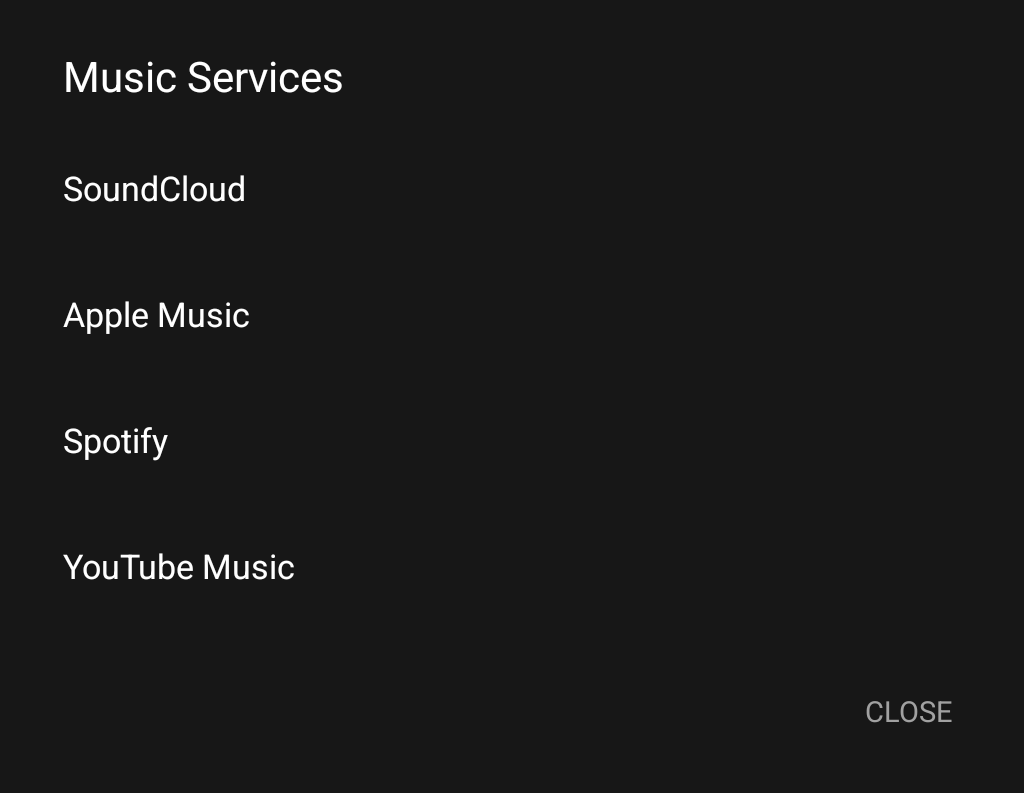
Music Services
Music Services groups SoundCloud, Apple Music, Spotify, and YouTube Music. Choose a service to open its installed app (or website) or start Capture from [service]…. Android asks you to approve the capture; audio and picture are available only when the source permits them.
SoundCloud also offers SoundCloud Feed, which requires a configured account token. Apple Music, Spotify, and YouTube Music currently provide open/capture entry points, not connected API feeds or in-app catalogs. Their developer applications and account connections have not been set up yet.
System file picker
Choose System File Picker to open Android's picker, including any cloud-backed providers exposed by Android. Folder shortcuts and the phone library provide additional paths to accessible media.
Phone Media
The phone library groups accessible media into:
- Phone for device media;
- Recent for recently used or discovered guide items;
- Captures for media created by CapDat.
Each row has a mini preview. Select the preview itself to open Media Preview. Long file names remain on one line so the thumbnail does not move.
Android's storage protections mean that a file visible inside another app may not be directly browsable by CapDat. Use that app's share/export action, the system picker, or Capture from App when appropriate.
6. Capturing media from another app
Use this workflow to preserve an app performance, feed item, or other permitted source as guide media before dancing to it.
- Open Load Media and choose Capture from App.
- In Android's capture chooser, select a single app when available, or select the full screen only when needed.
- Approve the Android capture prompt.
- Start playback in the source app.
- Return to CapDat from the notification or app switcher when the desired section is finished.
- Select the visible red Stop Capture control.
- After finalization, return to CapDat: the new capture opens automatically in Media Preview. Review and trim it, then select Load Media to make it the active guide. Opening the preview does not automatically replace your current guide. The file also remains available in Captures.
Where app captures go
| Result | Shared-storage location |
|---|---|
| Captured screen video | Movies/CapDat/App Captures |
| Captured playback audio, when allowed | Music/CapDat/App Captures |
Capture limitations
- A source app can prohibit playback-audio capture.
- DRM-protected video can appear black or silent.
- Calls, protected conversations, and some notification surfaces may be excluded by Android.
- A single-app capture is preferable because it limits unrelated screen content.
- CapDat records the approved session; it does not defeat the source service's terms or technical restrictions.
If the video exists but playback audio is silent, first test an unprotected source. If that works, the original app is likely declining Android playback capture.
7. Media Preview and non-destructive edits
Select a media thumbnail to open Media Preview. The X at the top right closes the pane without loading a different guide.
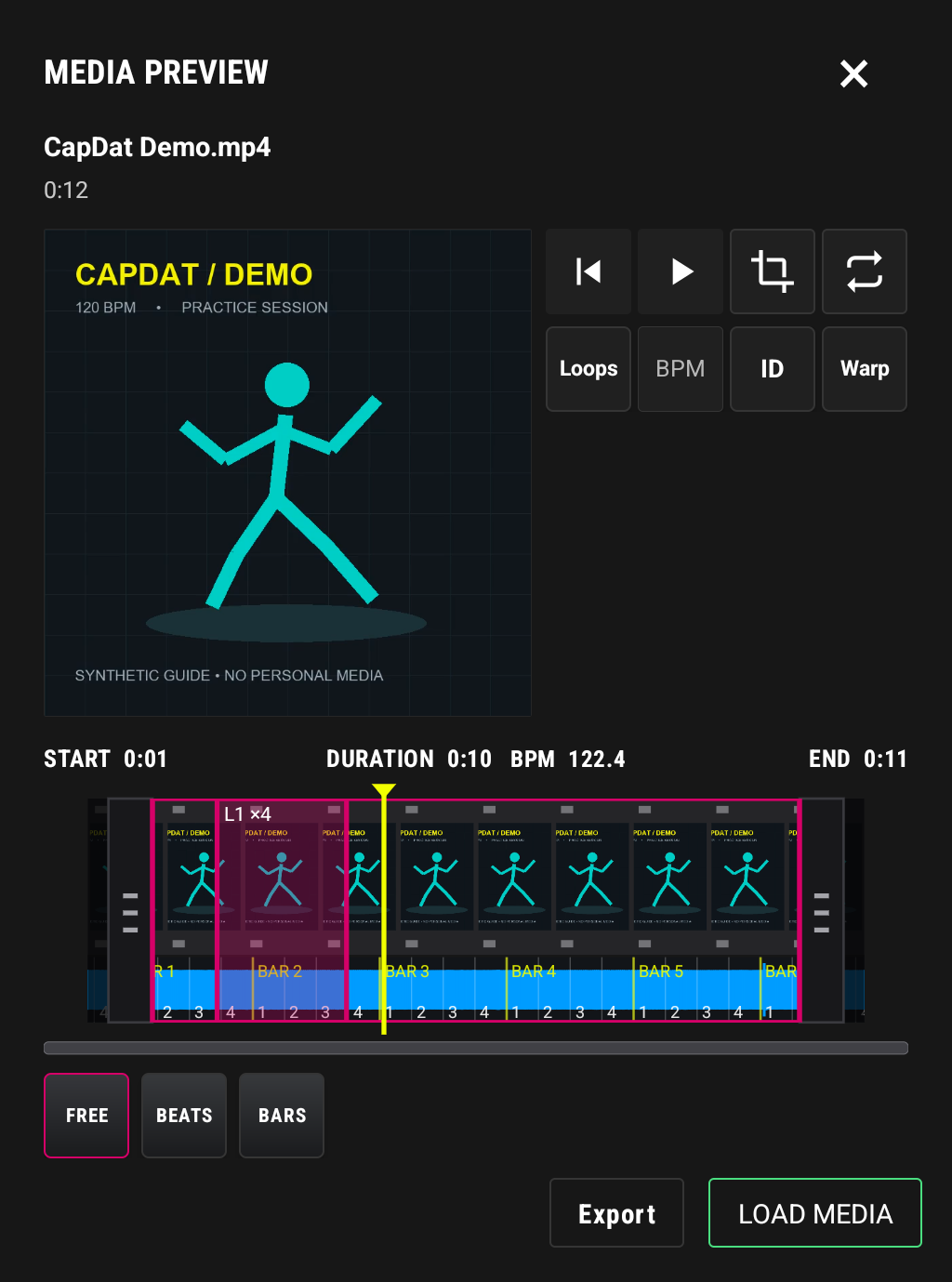
The buttons beside the video include playback, crop, loop playback, Loops, BPM, ID, and Warp. They wrap to fit the available width. START / DURATION / BPM / END describes the selected section: DURATION is the time between the grips, and BPM shows the effective tempo after any audio warp. Progress and completion messages appear briefly as floating notifications.
Transport and trim roll
The filmstrip or roll represents the guide timeline. The waveform sits below it, and the same start and end grips define the active section across both views.
- Tap and release in the roll to move the playhead.
- Press and drag before releasing to scrub the playhead.
- Drag a grip only by grabbing the grip itself.
- The inside edge of the start grip is the exact start point.
- The inside edge of the end grip is the exact end point.
- Media outside the grips is greyed out.
- Playback stops at the end grip, or returns to the start when loop mode is enabled.
- Use the jump-to-start control beside play to return precisely to the start grip.
Pinch with two fingers to zoom the timeline without increasing its height. The dark horizontal scrollbar extends to the outer edges of the grips and moves through the zoomed timeline. During playback, the view follows the playhead so it does not disappear off-screen.
Long-press actions and captured loops
Long-press the roll at a position to open Set Start and Set End. For video, the same menu offers Set Loop Start and Set Loop End. These actions use the position you pressed.
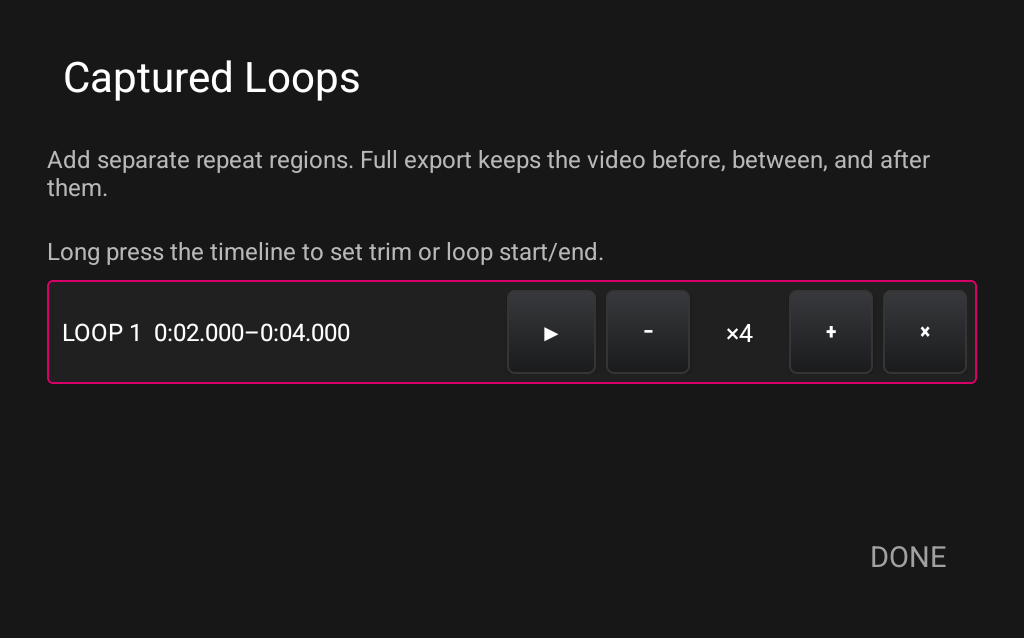
Open Loops to review captured sections, audition them, adjust their repeat count (2–64), or delete a captured loop. The loop-playback button beside the video repeats the current trim selection; captured loops are separately stored sections. Export Selected Loop creates a new file when a captured loop is selected.
Cropping
- Select the crop icon beside the video.
- Adjust the crop rectangle in the crop workspace.
- Select the check icon to confirm it.
- Use the reset icon to return to the full frame.
The normal preview may fit the complete source into its available pane; the saved crop is still an edit instruction. Reopen the crop control to inspect or change it. CapDat remembers the trim and crop for that media item.
Track identity
Open ID to identify a track, configure identification-provider details, or edit available title, artist, and source information manually. Automatic recognition depends on the configured provider and its credentials. Review recognition results before relying on them; provider setup and track identity live in this dialog.
Loading, exporting, or deleting
- Load Media makes the edited item the current guide.
- Export opens the copy, replacement, selected-loop, and video-to-PostDat choices described below.
- The trash icon opens a confirmation before deletion.
- Closing the preview leaves the current camera guide unchanged.
8. Waveform, BPM, beats, and bars
CapDat analyzes the selected audio and draws a waveform below the filmstrip. When tempo analysis is ready, the timing grid displays beats and bar numbers over the audio.
Playback waits for the waveform and grid to initialize. This prevents the guide from beginning before the trim, BPM, and snapping controls are ready.
BPM choices
Automatic tempo detection is an estimate. Half-time and double-time interpretations are common, and music with a loose pulse may produce several plausible values. Use the BPM button beside the video to:
- run detection again;
- choose from the detected candidates;
- select Enter BPM and type a known tempo;
- select Tap BPM, play the audio, and tap along until the estimate steadies.
Eight or more consistent taps usually give a more useful manual estimate. Listen to the bar numbering as well as the displayed number: a numerically plausible BPM can still place the musical downbeat incorrectly.
Trim snapping
| Mode | Grip behavior |
|---|---|
| Free | Places the start or end at the chosen time. |
| Beats | Snaps the grip to the nearest beat line. |
| Bars | Snaps the grip to the nearest bar boundary. |
Free / Beats / Bars sits below the roll on the left, with a pink outline indicating the selection. Snapping applies to the playhead and grips.
Zoom in before placing a precise start. Beat or bar snapping is best after the BPM and grid alignment have been confirmed.
Audio Warp
Open Warp to change the guide audio's tempo while preserving pitch. Enter a BPM, audio duration, or tempo percentage in the compact fields, or use the sliders. The three values stay linked. 100% is unchanged; the supported range is 85–115%.
The minus and plus buttons step BPM by 0.1, duration by 0.1 second, and tempo by 0.05 percentage points. Press and hold to repeat. If the source has no BPM yet, confirm one through BPM before entering a target BPM; duration and percentage remain usable.
Apply keeps the adjustment. Reset returns the dialog to 100%; apply it to keep that reset. Cancel discards changes made in the dialog.
For example, 120 BPM at 110% becomes 132 BPM, and 11 seconds of audio becomes 10 seconds. For video, Warp changes only the audio: the picture and selected video duration remain unchanged. Faster audio may end before the picture; slower audio is cut at the video end. Standalone audio exports change duration. The source beat grid remains tied to the original timeline.
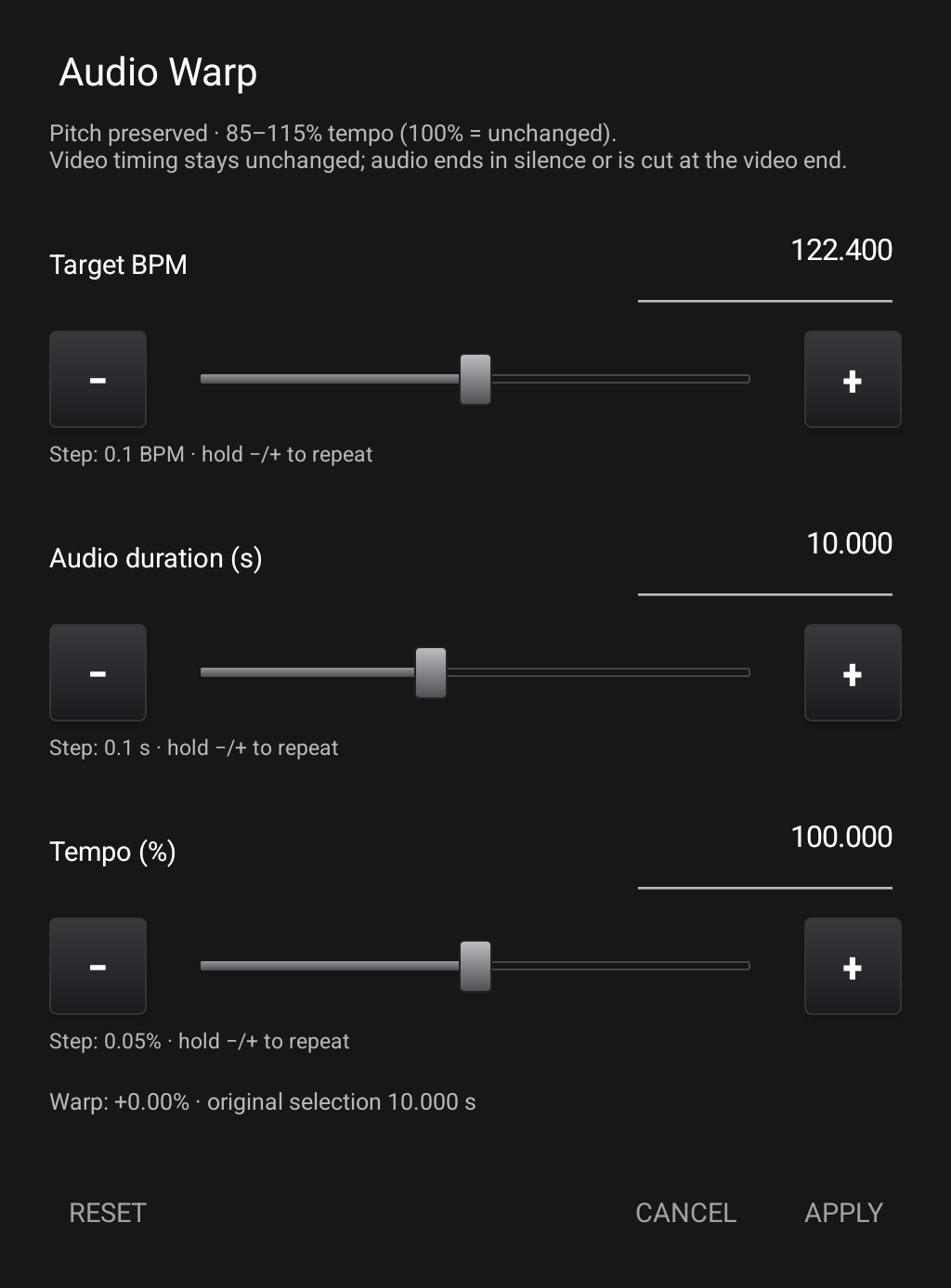
Warp also follows the loaded guide into recording and musical lead-ins. TrackDat receives the same editable tempo adjustment with the original source. Rendered exports bake in the adjustment; replacing the original resets the applied warp so it is not applied twice.
Export choices
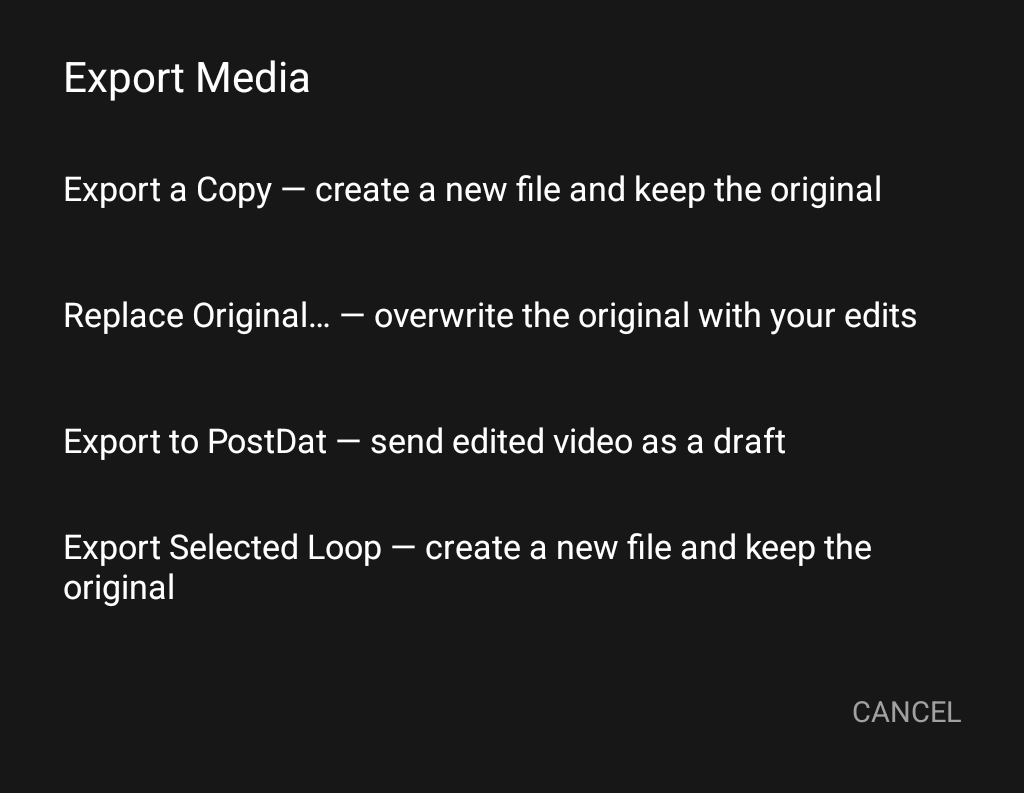
| Choice | Result |
|---|---|
| Export a Copy | Renders the current trim, crop, loops, and warp into an additional file, keeping the source. |
| Replace Original… | Renders corrections, then replaces the original after a confirmation explaining the operation. |
| Export to PostDat | For video: saves an edited local copy and uploads it as a private draft for review. |
| Export Selected Loop | Creates a separate file from the selected captured loop, when one is selected. |
Video copies use MP4 and audio copies use M4A, under Movies/CapDat or Music/CapDat. Replacement is available only for supported writable MediaStore MP4/M4A sources. If the source format or provider does not support replacement, use Export a Copy. Replacing a file removes the original version's editable content from that file; it is not the same as saving reversible project instructions.
Direct export to PostDat
Use this when the video is already ready for a post and does not need further TrackDat editing.
- Open the video in Media Preview, finish its edits, then choose Export → Export to PostDat.
- If unpaired, use Get Code to open the CapDat page, sign in, create a pairing code, and enter it with Connect & Export. An existing TrackDat bridge pairing is reused.
- Wait for rendering and upload. The rendered file is saved locally before it is sent.
- Choose Open PostDat and review the new draft, media, credits, and post details before publishing.
Nothing is published automatically. This route accepts video files up to 500 MB and sends one rendered file rather than a multi-asset TrackDat project. If an upload fails, the local copy remains. Check PostDat before retrying if the result is uncertain, to avoid creating a duplicate draft. Send Pending resumes TrackDat project transfers, not this direct PostDat upload.
9. Capture Settings and audio modes
Open the gear on the main camera and use the Source, Mic, and Color tabs.
Audio Source
| Mode | Saved result |
|---|---|
| Video Only | Dancer video without a guide or microphone mix. |
| Loaded Track | Dancer video timed to the selected guide. |
| Phone Mic | Dancer video with the selected microphone. |
| Loaded Track + Mic | Guide and microphone are available together while their source relationship is retained. |
| Metronome Only | Records against a generated click without requiring a guide file. |
| Metronome + Mic | Uses the generated click and records the selected microphone. |
The preview mix is useful for immediate review, but the TrackDat package preserves available sources separately. That makes later level, crop, timing, or replacement decisions reversible.
Loaded Track Controls
- Level changes guide playback or mix level.
- Sync offset corrects a known timing difference without rewriting the guide.
- The trim, crop, BPM, and source metadata remain associated with the loaded item.
TrackDat Bridge
The TrackDat Bridge section pairs the phone with the ShuffleDB account, reports pending packages, and provides Send Pending when a completed project needs to resume or be sent manually.
10. Microphones and Bluetooth
Use Capture Settings → Mic to choose an input route, set microphone level, and select available processing such as noise reduction.
Bluetooth audio on Android has tradeoffs. A headset may provide convenient monitoring or an input route, but Bluetooth microphone quality and latency can differ significantly from the phone microphone or a wired/USB device. Android may also expose a connected device for playback without making its microphone available to the recording session.
Before an important take:
- Connect the device before opening the final recording setup.
- Confirm the route shown in CapDat.
- Make a short test while moving at performance distance.
- Play the test back and check delay, clipping, noise reduction, and guide bleed.
If the desired input is unavailable, disconnect and reconnect it, reopen Capture Settings, and verify that Android granted the Bluetooth permission.
11. Countdown and metronome
Standard countdown
The main countdown offers Off, 3, 5, and 10 seconds. Ten seconds is the default. The current choice persists so repeated takes do not require the same setup each time.
Metronome lead-in with a loaded guide
After a guide has a confirmed BPM and grid, enable Metronome Lead-In and choose the number of bars. This gives the dancer musical time before the guide's start point.
The Include lead-in in recording option determines whether that count-in is retained in the saved recording/package. Leave it off when the click is only a cue; enable it when TrackDat should receive the lead-in as part of the project timing.
Metronome-only recording
Select Metronome Only or Metronome + Mic when there is no guide track. Set the BPM and recording options in Metronome Controls. The generated metronome can be represented as its own audio lane when the project is opened in TrackDat.
The countdown and the musical lead-in serve different purposes: the countdown gives time to get ready, while the lead-in establishes tempo and bar position.
12. Recording and saved files
When recording starts, CapDat applies the current camera, countdown, guide, microphone, metronome, and color configuration. Stop the take from the main record control.
CapDat retains the useful parts of a take rather than reducing everything to one irreversible video. Depending on the selected mode, the project can include:
- the raw dancer video;
- the loaded guide video;
- guide audio or app-captured playback audio;
- microphone audio;
- a generated metronome description or lane;
- a preview mix for immediate playback;
- trim, crop, BPM, audio warp, bar, level, timing, and source metadata.
Finished gallery captures are saved under Movies/CapDat. The TrackDat-ready package is first made durable in CapDat's private project storage so a gallery export does not become the only copy used by the bridge.
Wait for finalization before closing CapDat or disconnecting the phone. For a valuable take, verify playback and the TrackDat inbox before deleting any phone copy.
13. Sending a project to TrackDat
The bridge sends one logical performance as a multi-asset TrackDat project.
Pair the phone
- On a computer, sign in at shuffledb.com/CapDat.
- In CapDat → TrackDat, select Create pairing code.
- The code is single-use and expires after ten minutes.
- On the phone, open Capture Settings → Source → TrackDat Bridge.
- Enter the code and pair the device.
The resulting device credential can send projects to the paired account. Do not share the code while it is active.
Transfer a take
After a recording is finalized, CapDat can queue the project for upload. Large assets are divided into resumable chunks. If the network drops, return to TrackDat Bridge and use Send Pending rather than creating a duplicate recording.
At shuffledb.com/CapDat, the inbox reports the number of ready assets. Select Open in TrackDat only when the project is ready.
Track mapping
| CapDat asset | TrackDat role |
|---|---|
| Raw dancer video | Main performance video |
| Guide video | Reference or album-art video lane |
| Guide audio | Music/reference audio lane |
| Microphone | Separate recorded-audio lane |
| Generated metronome | Reconstructed metronome lane |
| Preview mix | Review/reference mix |
| Manifest | Crop, trim, BPM, bar, level, offset, metadata, and source relationships |
Position and zoom edits are also transferred as editable TrackDat automation when the current CapDat build includes transform keyframing. Move the playhead and choose Add Keyframe before manipulating the image. Drag with one finger to position the frame and pinch with two fingers to change its scale. Touching or scrubbing without an explicit keyframe does not add a point. TrackDat receives the populated X, Y, and Scale tracks rather than a flattened copy.
When a guide has Audio Warp, TrackDat uses the same tempo factor for the dancer’s replacement soundtrack, with its trim and sync settings. The original sources remain available, and overlapping original guide audio is muted to avoid doubling. This behavior is shared by TrackDat and TrackDat Testing.
TrackDat receives the sources rather than only the flattened preview. Continue with the TrackDat Manual for motion tracking, multitrack editing, effects, and rendering.
14. Deleting and managing media
The trash icon in Media Preview always asks for confirmation. Android may allow CapDat to delete media it created while requiring additional approval for a file owned by another app.
Deleting a shared gallery copy is not the same as clearing CapDat's private project data. Before removing a take, confirm that:
- the item is not still needed as a guide;
- the TrackDat upload shows all expected assets as ready;
- another project does not depend on the same source file;
- any valuable original is backed up outside the phone.
Do not clear app storage as a general cleanup method. That can remove pending project packages, remembered edits, pairing information, and transfer state.
15. Troubleshooting
The preview has audio but the picture is black
Wait for the thumbnail and preview to finish loading, then close and reopen the item. If it came from app capture, test a non-protected video. A protected source can intentionally produce a black capture even while another permitted audio path remains audible.
The app capture has video but no audio
The source app may prohibit Android playback capture. Confirm the behavior with an unprotected local or browser source. CapDat cannot override a source app's policy.
Capture is running and I cannot find Stop
Return to CapDat from Android's recent-apps screen or the active capture notification. Use the red Stop Capture control in CapDat. Android may also expose a system stop action in the notification or status area.
Playback begins outside the start grip or continues past the end grip
Pause, use jump-to-start, and confirm the inside edges of both grips. Wait for waveform/grid loading to finish before playing. If the item was already loaded, reopen Media Preview, adjust the grips, and load it again.
The crop appears to be lost
Open the crop tool and inspect the saved rectangle. Confirm changes with the check icon. The fitted normal preview can show surrounding layout space; the crop itself remains a non-destructive instruction.
BPM looks wrong
Open BPM beside the video. Try another detection candidate, enter a known BPM, or use Tap BPM for at least eight steady taps. Check half and double the displayed tempo, then confirm that bar numbers land on musical downbeats.
A Bluetooth microphone is missing
Grant Nearby devices/Bluetooth permission, reconnect the device, and reopen the Mic tab. Some Bluetooth profiles offer playback only or switch to a lower-quality call profile when used as a microphone.
Save reports ENOENT or a missing cache path
Use the newest CapDat build and repeat the take after restarting the app. Do not rely on an older temporary cache folder as durable storage. If the error continues, preserve the exact message and confirm that the phone has free storage.
The TrackDat upload is incomplete
Keep CapDat installed, connect to a stable network, open TrackDat Bridge, and select Send Pending. In the web inbox, refresh and compare the ready-asset count with the total before opening the project.
16. Recommended workflows
Dance to a SoundCloud or feed discovery
- Capture the permitted app item or use the connected feed.
- Preserve the available title, artist, artwork, and source URL.
- Trim to the section you want, confirm BPM and bar alignment, and load it.
- Add a metronome lead-in if useful.
- Record the dancer and send the package to TrackDat.
Dance to a metronome only
- Choose Metronome Only or Metronome + Mic.
- Enter or tap the BPM.
- Choose the countdown and whether the click should be retained.
- Record the take.
- Open it in TrackDat, where the metronome can remain a separate lane.
Send a finished video straight to a post
Review it in Media Preview, choose Export to PostDat, then review the resulting draft in PostDat. Use TrackDat first when the piece still needs composition, motion work, or multitrack editing.
Preserve maximum editing freedom
Use Loaded Track + Mic, keep the raw dancer video, avoid destructive trimming in external apps, and complete the TrackDat upload before phone cleanup. Treat the preview mix as a convenience, not as the only master.
17. Glossary
Guide media — The audio or video the dancer follows during a take.
Grip — A trim boundary whose inside edge marks the exact active start or end.
Playhead — The current playback position in the transport.
Beat — A pulse in the detected or entered tempo grid.
Bar — A grouped set of beats, shown with a bar number for musical navigation.
Lead-in — Optional metronome bars before the guide start, used to establish time.
Preview mix — A convenient combined playback result; it does not replace the preserved source lanes.
Manifest — Structured project information describing sources, edits, timing, and relationships.
Bridge — The paired, resumable transfer from CapDat on Android to the private TrackDat inbox.
Audio Warp — A pitch-preserving tempo adjustment. For video it changes the soundtrack, not picture timing.
PostDat draft — A rendered video sent to the paired account for review, without automatic publication.
Non-destructive — An edit stored as instructions while the source file remains unchanged.